Assign inspection templates to a property
Using our "pin" feature, you can make a template the starting choice when an inspector begins an inspection at a property. Pin the templates that belong there, and the app opens with them instead of a list of everything you have ever built.
Pinning is optional, and there is nothing to configure if your templates apply everywhere.
When to use it
- A template that only applies to a few of your properties. A furnished apartment checklist does not belong on your unfurnished houses, so pin it to the apartments it covers.
- A one-off template built just for one property. A multi-unit building with its own inspection routine can have that template pinned, and it stops cluttering the choice everywhere else.
Pinning a template
- Open the property from "Properties" in the web dashboard.
- Press "Pin template" on the "Inspection templates" card.
- Choose a template. It is pinned as soon as you pick it.
A property can have any number of pinned templates. To unpin one, press the remove button beside its name. Pinning and unpinning never changes the template itself.
What inspectors see
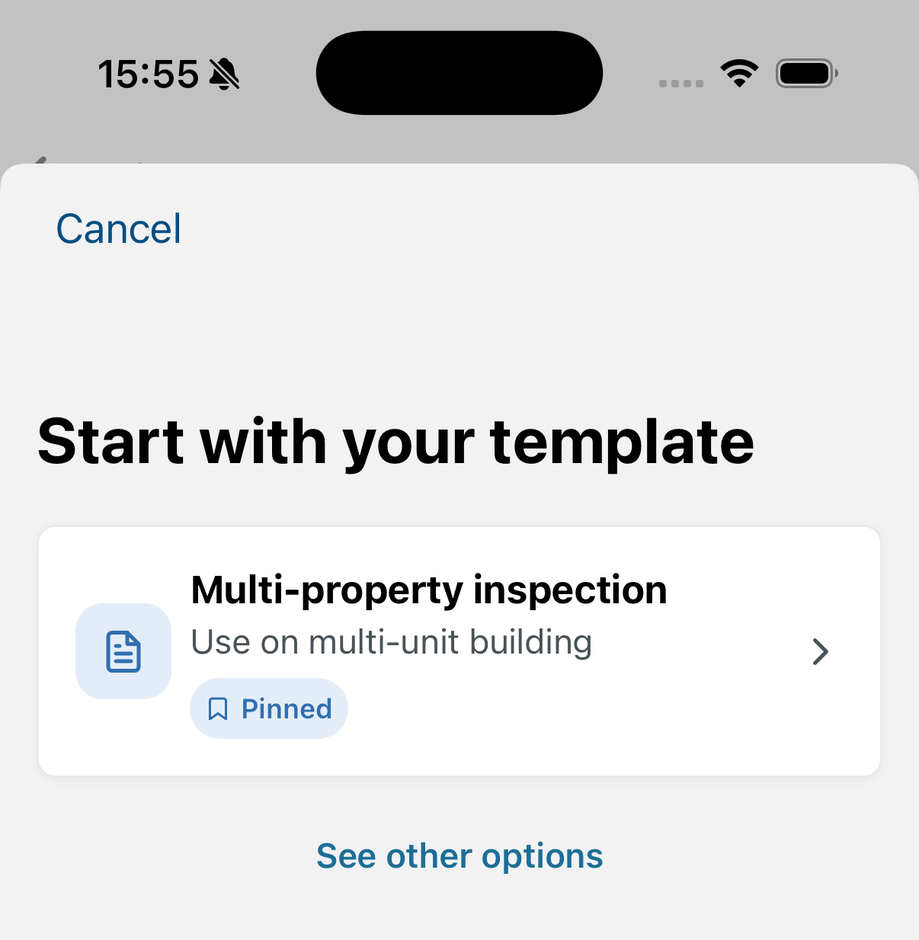
When an inspector starts a new inspection at the property, the app opens with "Start with your template" and the pinned template front and center, wearing a "Pinned" badge. If the property has several pins, they all appear. "See other options" reveals the rest of your templates, so a pin is a strong suggestion, never a lock.
When nothing is pinned
Inspectors choose from all of your templates, with the ones already used at this property suggested first. That default works well for most portfolios; pinning is there for the properties where the right template is not obvious.
Still need help?
Our team is happy to help. Get in touch.