How to run an NSPIRE inspection
HUD's NSPIRE checklist is in our template library: all 63 standards in HUD's order, each deficiency with HUD's severity and the location it applies to. This article walks through running it, from importing the template to the re-inspection after a repair. NSPIRE is technical, so your inspectors still need to know the standards. myInspections makes the walk itself quick and keeps the record.
1. Import the NSPIRE template
- Open the checklist. Go to the NSPIRE inspection checklist in our template library.
- Select Use this template, or Try in myInspections if you're signed in. The template is copied into your account and opens in the template builder.
- Leave it as it is, or tidy it. You can rename or remove checks and reorder the standards. The answer options on each check stay as HUD wrote them.
Importing needs a plan that includes templates. Once imported, it's one of your templates, and every NSPIRE inspection you book starts from it.
2. Book the inspection on the unit
Each unit is a property in myInspections. Start a new inspection on the unit from the app, or book it ahead from the web, and choose the NSPIRE template. To keep units on a cycle, set an inspection frequency on each one and myInspections reminds you when the next one is due. See how to schedule inspections and reminders.
3. Walk the unit, standard by standard
- Fill in Inspection details first. It holds the header fields from HUD's form, like the type of inspection.
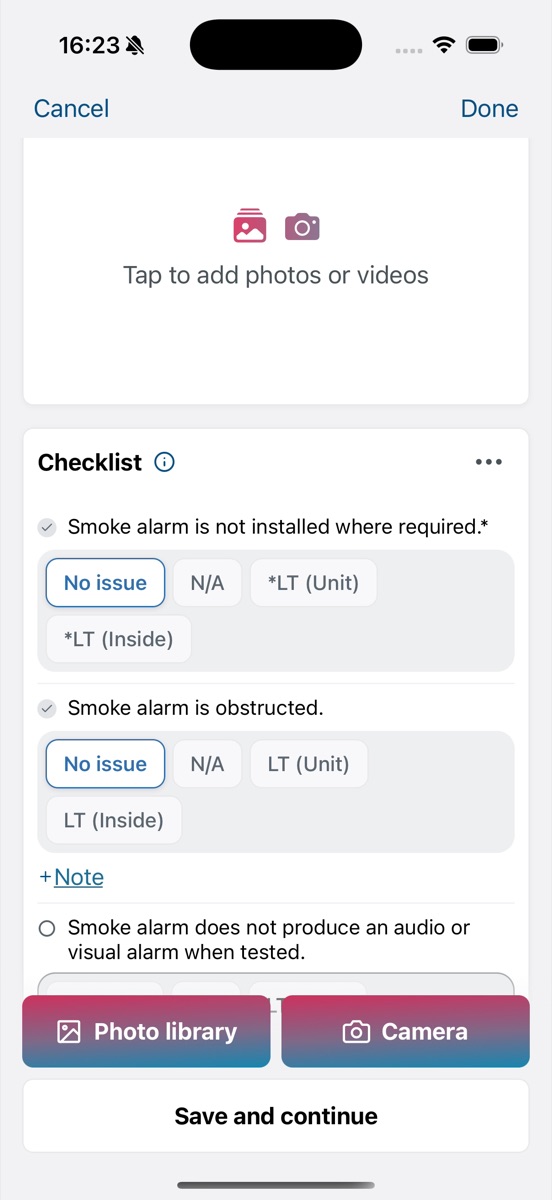
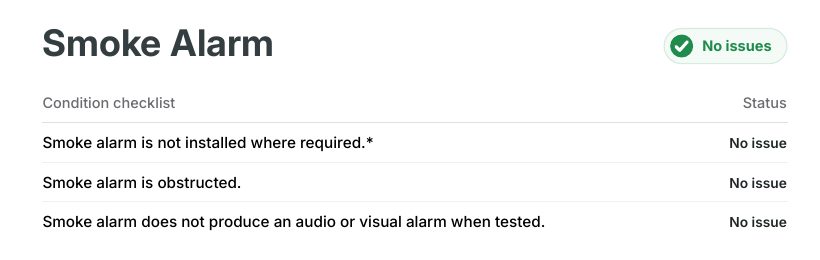
- Add the next standard. Search for it by name, like "smoke", and select Add. Standards marked required have to be completed before you can finish.
- Answer each row. Every row is one tap: No issue, N/A, or the deficiency with its severity and location, like LT (Unit) or M (Inside). A row with * is an affirmative habitability requirement: something that must be present.
- Mark a whole standard N/A when the unit hasn't got one, like an elevator, a garage, or a chimney. It shows as not applicable on the report.
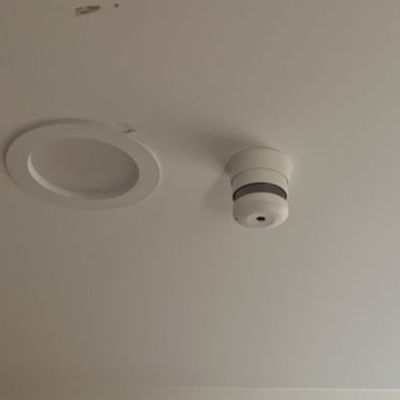
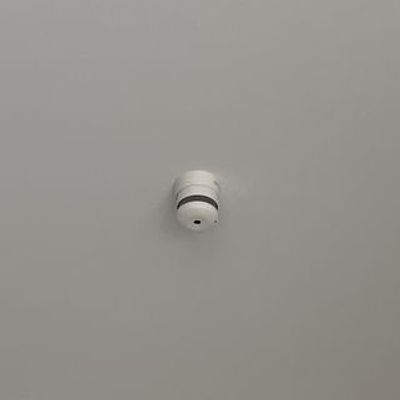
- Add photos and video on any standard with Photo library or Camera, so every finding has its evidence.
- Add a note under a row when there's something to explain, and a maintenance item for anything your team needs to fix.
- Select Save and continue and move to the next standard.
+ Note
+ Note
+ Note
The app works offline. Inspect a basement or a site with no signal, and the inspection uploads when you're back in range. For the basics of running any inspection in the app, see how to perform an inspection.
4. Finish and get the report
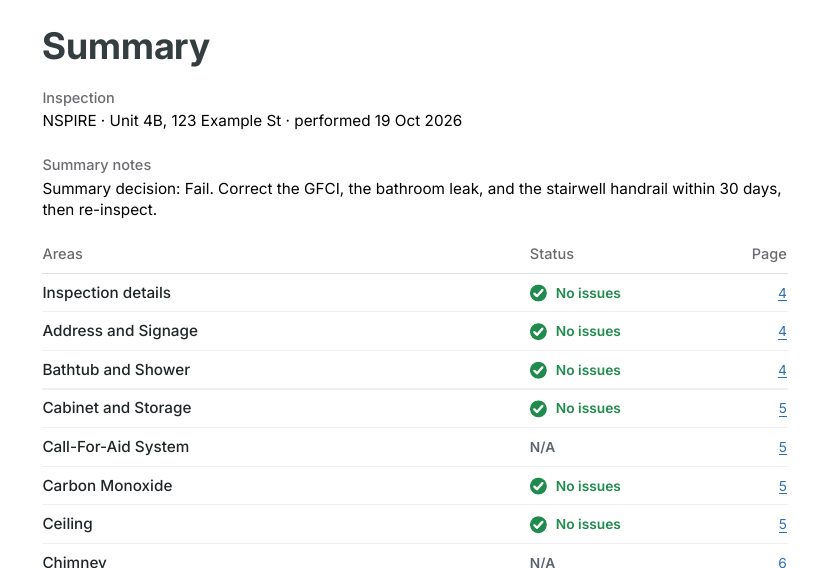
Finish the inspection and the report is ready: every answer under its standard, with the photos and video beside it, as a PDF and as a digital report that opens in any browser. Maintenance items are listed in the PDF's appendix. The resident can review and sign on your phone, or later from a link, with no account. See how to share a report and how to sign a report.
5. Record pass or fail
myInspections doesn't decide the result. Your team reviews the report and records the decision. On HUD's checklist for voucher units, the severity of each deficiency sets the result and the time to fix it:
- Life-threatening (LT): the unit fails, and it's fixed within 24 hours.
- Severe (S): the unit fails, and it's fixed within 30 days.
- Moderate (M): the unit fails, and it's fixed within 30 days.
- Low (L): noted, and the unit passes.
Write the decision and the deadlines in the inspection's summary so they're on the report. Always check HUD's current notices for your program.
6. Re-inspect after a repair
Once the repairs are made, book another inspection on the unit from the same template and record what was fixed, with photos. Both inspections stay filed under the unit, so its history reads top to bottom.
Keep the paperwork with the unit
Letters, repair invoices, and spreadsheets that sit outside the inspection can go in the unit's documents, beside its inspections. See how to keep documents with a property. When someone asks for the records, export one report or hundreds, as PDFs or with the full data. See how to export your inspections.
Built with affordable housing providers
myInspections is built with affordable housing providers in mind, and we worked with them directly while building our NSPIRE checklist.
See what myInspections does for affordable housing providers →Still need help?
Email us and someone on our team will get back to you. We're happy to jump on a call and walk you through it, too.
hello@myinspections.com