Getting started with myInspections
Overview
myInspections has two halves. Your inspectors use the app on site to run inspections, and your team uses the web for everything else: properties, templates, your team, scheduling, and the reports.

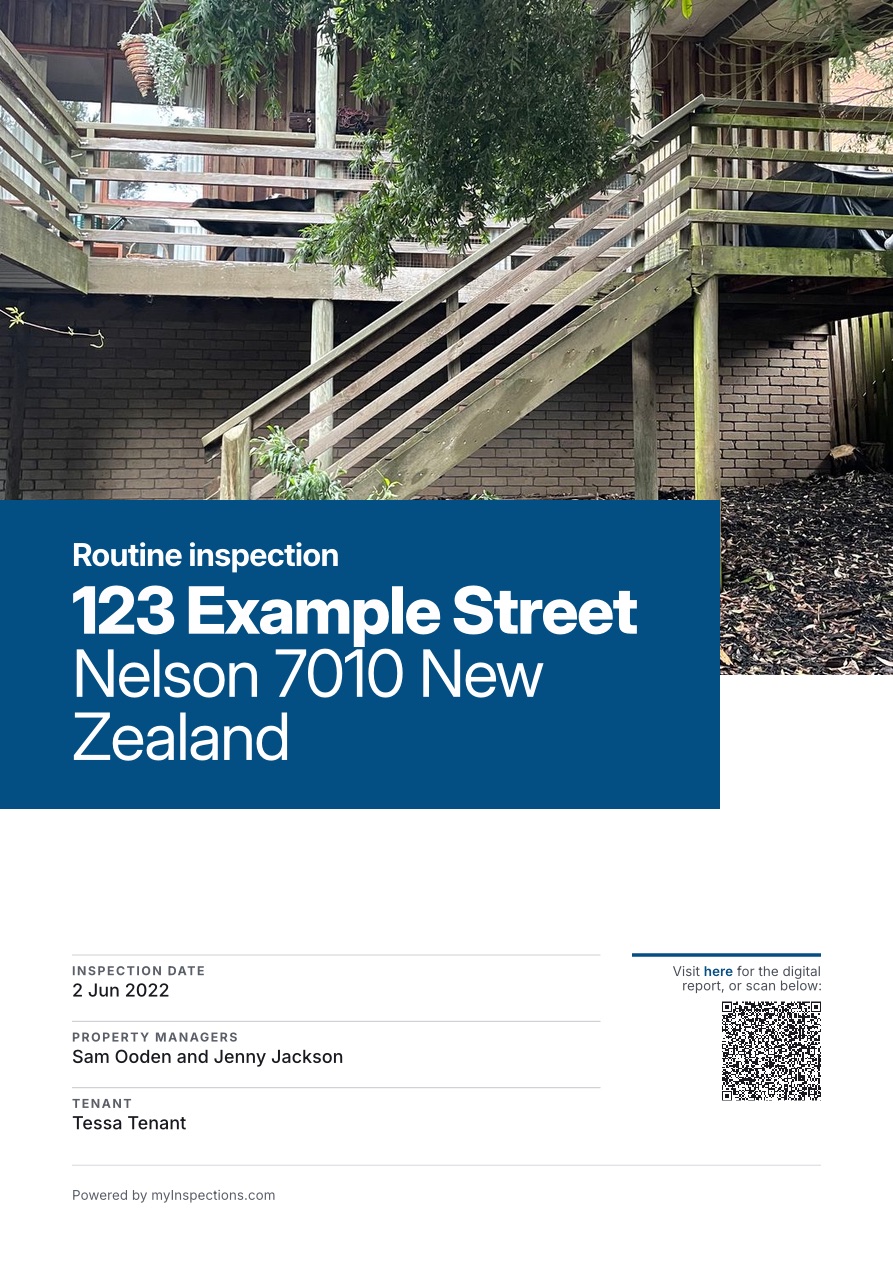
What you finish in the field isn't final. Finish the inspection on site and upload it, then pick it up on the web: review it as a team if that's your workflow, tweak it, add notes, and share it when it's ready. Inspectors can finish and move on, and the office takes it from there.
The steps below walk through setting up myInspections in the order most accounts go through it. Each step links to a detailed article.
1. Set up your account and choose a plan
Sign up on the web with your name, email, and country. Your company name is optional, and you can add or change it later under Branding on the Custom reports page. To choose a plan, open Settings on the web and select Change plan. Every paid plan starts with a 14-day trial. See how to change or cancel your plan.
2. Add your properties
Add properties one at a time from Properties on the web, or from the app. Have a list already? Bulk import them from a spreadsheet, with their contacts and notes. If you use myRent, connect it and your tenancies appear as properties.
Each property keeps contacts (tenants, owners, and more), notes for access details, and documents like leases and past reports, all kept private to your team.
3. Set up your inspection templates
A template sets the areas and checklists every inspection runs on. Start from a ready-made one in the template library, or build your own from Inspection templates on the web. If a template only suits some properties, pin it to them so inspectors start with it there. Templates are on the Solo plan and above.
4. Invite your team
Admins invite people from the Team page on the web, giving each one a role: admin, teammate, or inspector. Inspectors only see the properties assigned to them, so assign properties from each property's page. See team roles and permissions for what each role can do. Inviting team members starts on the Plus plan, and the inspector role and assigning properties on the Max plan.
5. Schedule inspections and reminders
Set how often each property is inspected, and how many days' notice you want before it's due. Set a default in Settings and every new property starts with it. Reminders are push notifications from the app, sent to the people assigned to the property, or to every admin and teammate if no one is. See how to schedule inspections and reminders.
6. Run an inspection in the app
Open the property in the app and start a new inspection from a template or from scratch. The app guides you room by room, with photos, video, a condition for each area, and notes. You can run the whole inspection without signal, and only need a connection to upload it. See how to perform an inspection. Running HUD's NSPIRE checklist? See how to run an NSPIRE inspection.
7. Share the report and get it signed
Every plan can customize the PDF cover and contents from Custom reports. On the Plus plan and above, you can also add your logo, brand color, and contact details.
Once an inspection is uploaded, share it by email, by link, or with a QR code in person. Everyone you ask to sign can review it first, adding their own notes, photos, and video, then sign it in any browser with no account or app.
8. After the inspection
- Edit it. Fix anything on the web and publish it as a new version. Earlier versions stay on record. See how to edit a completed inspection.
- Duplicate it. Copy a finished inspection in the app to start the next one. See how to duplicate an inspection.
- Move it. Did it under the wrong property? Move it across. See how to move an inspection.
- Export it. Download one inspection with every photo, video, and its data, or bulk export PDF reports. See how to export your inspections.
For anything else, browse the help center.
Still need help?
Email us and someone on our team will get back to you. We're happy to jump on a call and walk you through it, too.
hello@myinspections.com